Smart lighting systems offer convenience, energy savings, and advanced features for modern homes. However, even the best setups can sometimes run into problems—ranging from connectivity glitches to unresponsive bulbs. This guide shares practical smart lighting troubleshooting tips to help you quickly resolve common issues and keep your lights working smoothly.
Whether you’re new to smart bulbs or have an advanced setup, understanding how to diagnose and fix typical problems can save you time and frustration. For those planning a new installation or looking to optimize their system, you may also find value in the smart lighting setup tips article, which covers best practices for getting started.
Understanding Smart Lighting Systems
Before diving into solutions, it’s helpful to know how these systems work. Most smart lighting setups rely on wireless communication—such as WiFi, Zigbee, or Bluetooth—to connect bulbs, switches, and hubs to your home network. Issues can arise from network instability, firmware bugs, or incorrect configurations.
If you’re unsure whether your system needs a hub or can function hub-free, the smart lighting hub vs hubless explained resource provides a clear comparison.
Connection Problems and Network Issues
One of the most frequent challenges is when smart lights lose their connection or fail to respond to commands. Here are some targeted smart lighting troubleshooting tips for network-related issues:
- Check WiFi Signal Strength: Smart bulbs and switches need a strong, stable signal. If your device is far from the router or blocked by walls, consider moving your router or adding a mesh network node.
- Restart Devices: Power cycling both your router and smart lighting devices can often resolve temporary glitches.
- Update Firmware: Manufacturers frequently release updates to fix bugs and improve performance. Use the app associated with your lights to check for and install updates.
- Re-add Devices: If a bulb or switch drops off the network, try removing it from your app and adding it back. Follow the manufacturer’s reset instructions.
- Network Requirements: Some systems require specific network settings. For more detailed advice on optimizing your home network for smart lighting, see the smart lighting network requirements guide.
Unresponsive Bulbs and Switches
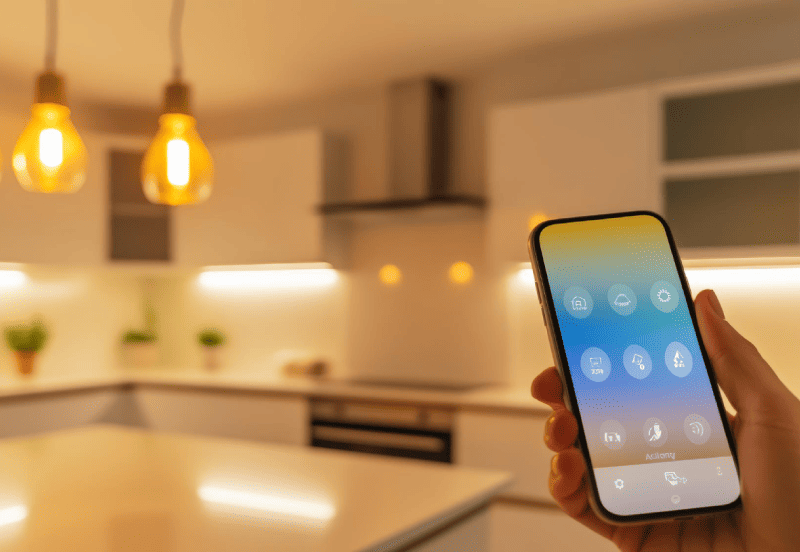
Sometimes, a smart bulb or switch may stop responding even though the rest of the system works fine. Here’s how to address this:
- Power Check: Ensure the bulb or switch is receiving power. For bulbs, try turning the physical switch off and on. For switches, check your circuit breaker.
- Reset the Device: Most smart bulbs have a reset procedure (such as toggling the switch several times). Consult your product manual for the correct steps.
- App Troubleshooting: Remove the device from your app and re-pair it. This often resolves software conflicts.
- Compatibility: Make sure your bulb or switch is compatible with your hub or app version. Some updates may require you to update both the device and the app.
If you’re setting up new devices, the how to connect smart lights to wifi tutorial provides a simple walkthrough for a smooth installation process.
Voice Assistant and App Control Issues
Smart lighting is often controlled via voice assistants like Alexa, Google Assistant, or Apple HomeKit. If your lights aren’t responding to voice commands or app controls, try these solutions:
- Check Account Linking: Ensure your smart lighting account is properly linked to your voice assistant. Sometimes, unlinking and relinking can resolve issues.
- Update Skills/Actions: Voice assistants use “skills” or “actions” to control devices. Make sure these are up to date in your assistant’s app.
- Reboot Devices: Restart your phone, smart speaker, and any hubs involved in the system.
- Network Sync: Confirm that all devices are on the same WiFi network and that there are no guest network restrictions.
Lighting Scenes and Automation Failures
One of the main benefits of smart lighting is the ability to set scenes and automate routines. If your automations aren’t working as expected, consider these troubleshooting tips for smart lighting:
- Review Automation Rules: Double-check the triggers and actions in your automation settings. Sometimes, a small error can prevent routines from running.
- Time Zone Settings: Ensure your hub or app is set to the correct time zone, as this can affect scheduled routines.
- Firmware and App Updates: Outdated software can cause automation failures. Regularly check for updates.
- Device Availability: If a device is offline, it won’t participate in scenes or automations. Make sure all devices are online and connected.
When to Reset or Replace Devices
If you’ve tried all the above and a device still doesn’t work, a factory reset is often the last resort. Follow the manufacturer’s instructions for a full reset. If the problem persists, the device may be faulty and require replacement.
For those planning a larger system, the smart lighting system planning guide can help you choose reliable products and avoid common pitfalls from the start.
Preventative Maintenance and Best Practices
To minimize future issues, adopt these best practices:
- Regularly update firmware for all devices and apps.
- Keep your WiFi network secure and stable.
- Document your setup—note which bulbs and switches are installed where, and keep a record of automation rules.
- Use surge protectors for hubs and key devices to prevent damage from power fluctuations.
- Read product manuals and manufacturer FAQs for device-specific troubleshooting steps.
If you’re interested in learning more about the advantages of connected lighting, check out this in-depth look at the benefits of smart lighting in your home.
FAQ: Common Questions About Smart Lighting Issues
Why do my smart bulbs keep disconnecting from WiFi?
This is often due to weak signal strength, interference from other devices, or router settings. Try moving your router closer, reducing interference, or switching to a mesh network. Make sure your bulbs are compatible with your WiFi frequency (2.4GHz is most common).
How do I reset a smart bulb or switch?
Most smart bulbs can be reset by toggling the power switch on and off several times in quick succession. For switches, consult the manufacturer’s instructions. Resetting will usually restore the device to factory settings, allowing you to re-add it to your system.
Can I use smart bulbs with regular wall switches?
Yes, but turning off the wall switch will cut power to the bulb, making it unresponsive to app or voice controls. For best results, keep wall switches in the “on” position and use your app or voice assistant to control the lights.
What should I do if my automation routines aren’t working?
Check that all devices involved are online, review the automation rules for errors, and ensure your app and devices are updated. Time zone mismatches can also cause schedules to fail.
Are smart lighting systems secure?
Most reputable brands use encryption and regular updates to ensure security. Always use strong passwords, keep your firmware updated, and avoid sharing access with unknown users.
With these smart lighting troubleshooting tips and best practices, you can resolve most common issues and enjoy a reliable, responsive lighting experience in your home.