Smart lighting has transformed the way we illuminate our homes, offering convenience, energy savings, and advanced control right from your smartphone or voice assistant. If you’re new to this technology, figuring out how to connect smart lights to WiFi can seem daunting. Fortunately, the process is straightforward once you understand the steps and requirements. This guide will walk you through everything you need to know to get your smart bulbs or fixtures online and ready to use.
Before diving into the setup, it’s helpful to understand the basics of smart lighting. For a deeper look at the technology and its benefits, check out the smart lighting basics for homeowners guide. With a little preparation, you’ll be able to enjoy the flexibility and features that connected lighting brings to your living space.
What You Need Before Starting
Before you begin, make sure you have the following items ready:
- Smart light bulbs or fixtures that support WiFi connectivity (such as Philips Hue, Kasa, or similar brands).
- A 2.4GHz WiFi network (most smart lights do not support 5GHz networks).
- A smartphone or tablet with the manufacturer’s app installed.
- Access to your WiFi password.
Some brands may require a hub or bridge, but many modern smart bulbs connect directly to your wireless network. Always check the product instructions for any specific requirements.
Step-by-Step Instructions for Setting Up Smart Lighting
Let’s break down the process of getting your smart lights online:
-
Install Your Smart Bulbs or Fixtures
Screw in the smart bulb or install the fixture as you would a regular light. Ensure the power is turned on. -
Download the Manufacturer’s App
Search for the official app in the App Store or Google Play Store. Popular apps include Philips Hue, Kasa Smart, and others. -
Create an Account
Open the app and sign up for an account if you don’t already have one. -
Connect to WiFi
Follow the in-app instructions to add a new device. The app will prompt you to connect the light to your WiFi network. Enter your WiFi credentials when asked. -
Pair and Test
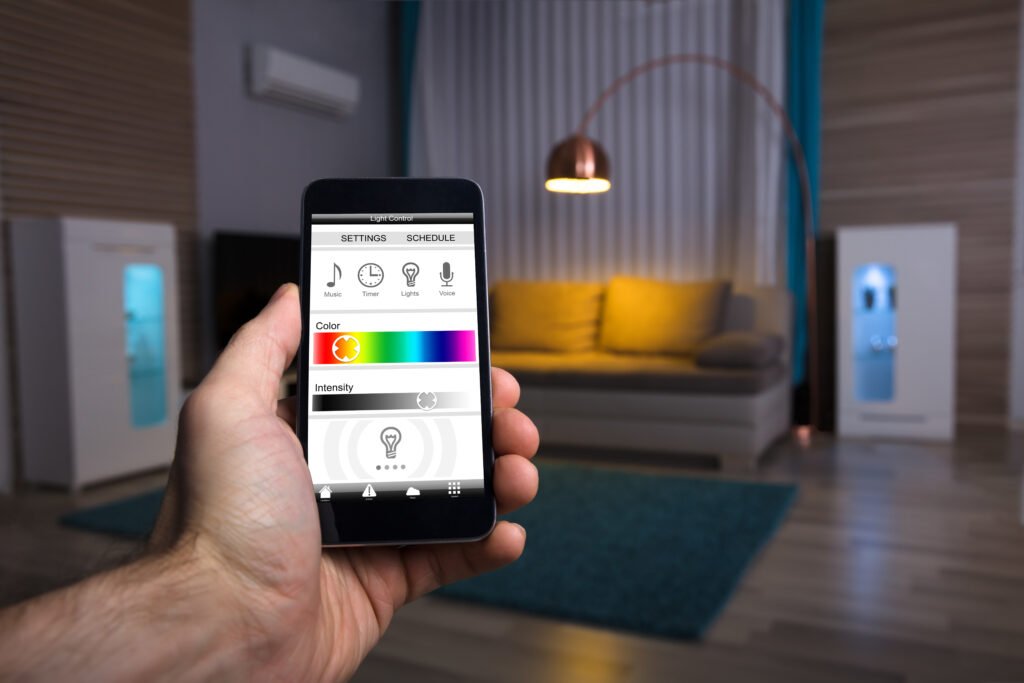
Once connected, the app should detect your smart light. Test it by turning it on/off or changing colors through the app.
If you encounter any issues, consult the troubleshooting section below or refer to the smart lighting installation guide for more detailed setup help.
Common Issues When Connecting Smart Lights to WiFi
Even with the best preparation, you might run into some obstacles. Here are a few common problems and solutions:
- Bulb Not Detected: Make sure your phone is on the same 2.4GHz WiFi network. Reset the bulb by turning it on and off several times as per the manufacturer’s instructions.
- Incorrect WiFi Password: Double-check your password. Many connection failures are due to typos or incorrect credentials.
- Unsupported Network: Most smart lights only work with 2.4GHz WiFi. If your router combines 2.4GHz and 5GHz into one SSID, try separating them in your router settings.
- App Permissions: Ensure the app has permission to access your location and Bluetooth, as some devices require this for setup.
If you’re still having trouble, restarting your router and resetting the bulb often resolves connectivity issues.

Tips for a Smooth WiFi Lighting Setup
To maximize your success when connecting smart lights to your home network, keep these tips in mind:
- Place your router centrally for better coverage.
- Keep smart bulbs within range of your WiFi signal during setup.
- Update your app and device firmware before starting.
- Label your bulbs in the app for easy identification later.
- Consider using a dedicated guest network for smart devices for added security.
For a detailed breakdown of features to look for in connected lighting, see smart lighting features explained.
Benefits of WiFi-Connected Lighting
Smart lighting offers more than just remote control. Some of the key advantages include:
- Energy efficiency through scheduling and automation.
- Integration with voice assistants like Alexa or Google Assistant.
- Customizable scenes and routines for different moods or times of day.
- Remote access, so you can control lights even when away from home.
To learn more about the advantages, read this overview of smart lighting benefits from Countfire.
Expanding Your Smart Lighting System
Once your initial lights are connected, you can easily add more devices. Most apps allow you to group lights by room or zone, making it simple to control multiple bulbs together. For a comprehensive walkthrough on expanding and customizing your setup, visit the step-by-step smart lighting setup tutorial.
As your system grows, you may want to explore advanced automations, such as syncing lights with sunrise and sunset, or integrating with other smart home devices. Comparing smart lighting vs traditional lighting can also help you understand the full range of possibilities and how to get the most from your investment.
Frequently Asked Questions
Can I use smart lights if my WiFi goes down?
Most WiFi-connected lights require an active network to be controlled via app or voice assistant. However, you can still use the physical light switch to turn them on or off. Some brands offer limited local control or Bluetooth fallback, but features may be restricted.
Do I need a hub or bridge for my smart bulbs?
Many modern smart bulbs connect directly to WiFi and do not require a hub. However, some systems (like Philips Hue) may offer enhanced features or reliability when used with a dedicated bridge. Always check the product specifications before purchasing.
Are smart lights secure?
Smart lighting is generally safe, but it’s important to use strong, unique passwords for your WiFi and app accounts. Keeping your devices and apps updated helps protect against vulnerabilities. For added security, consider placing smart devices on a separate guest network.
How do I reset a smart bulb if it won’t connect?
Most smart bulbs can be reset by turning them on and off in a specific sequence (such as five times in a row). Refer to the manufacturer’s instructions for the exact reset process. After resetting, you can try the setup process again.
Conclusion
Connecting smart lights to your home WiFi network is a manageable process that unlocks a host of convenient and energy-saving features. By following the steps outlined in this article and utilizing the troubleshooting tips, you’ll be able to enjoy the full benefits of smart lighting in your home. For more advanced tips and DIY installation advice, explore the smart lighting installation guide and related resources on our site.